We're changing streaming forever.
One app builds and runs the whole show. Your switcher, overlays, chat, audio and guest calls are already one thing here, so the evening goes on the show itself. It is one running order you press through: cameras, guests, cues, polls, music, both audio channels and going live, in one place. From a hangout to a live performance, and everything is included at $2.99 or $12.99 a month. This is the easy way hosts have been asking for. And the people watching join in — they vote, they answer, they react, they end up on the stage.
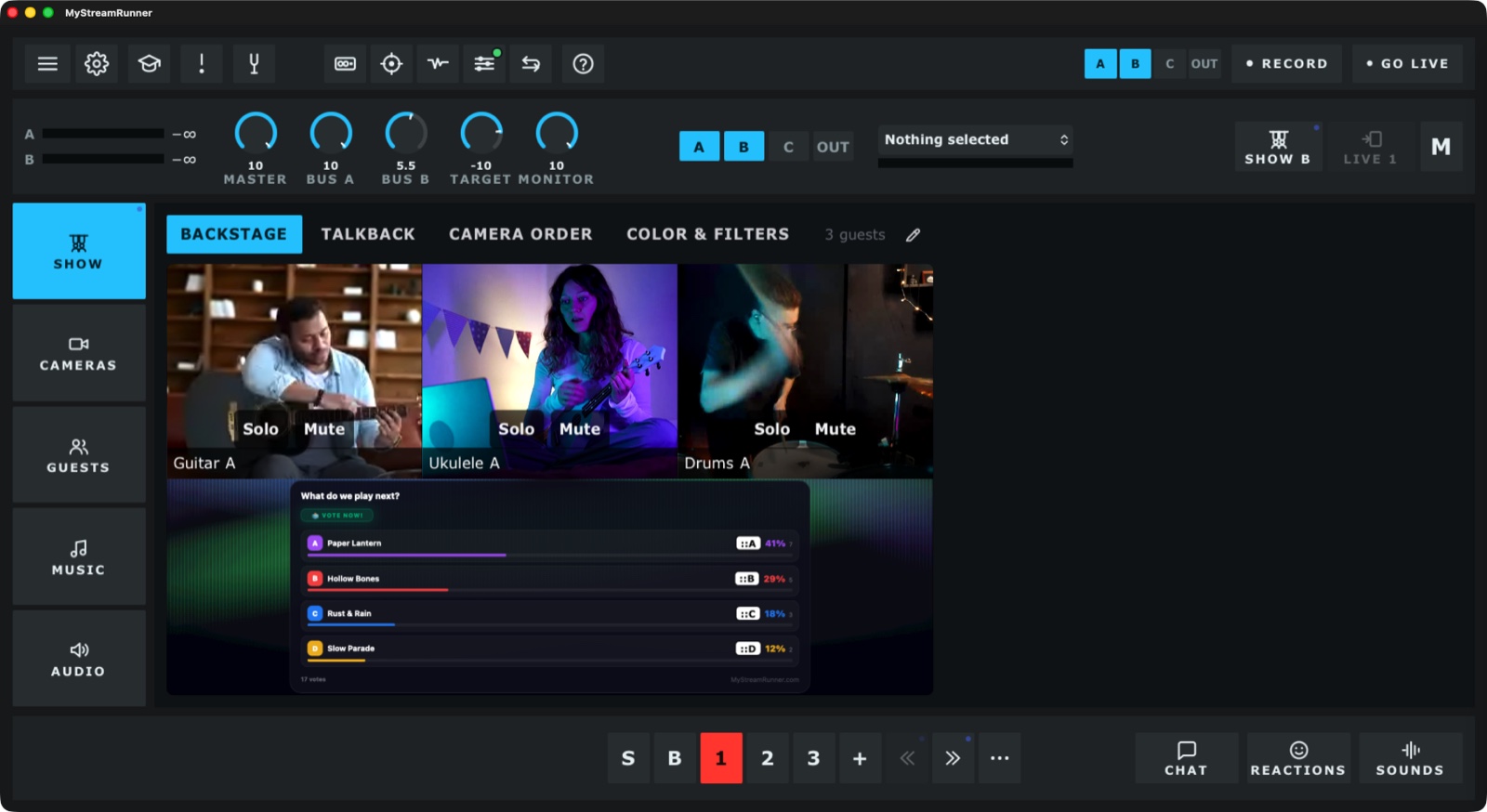
A new level of engagement
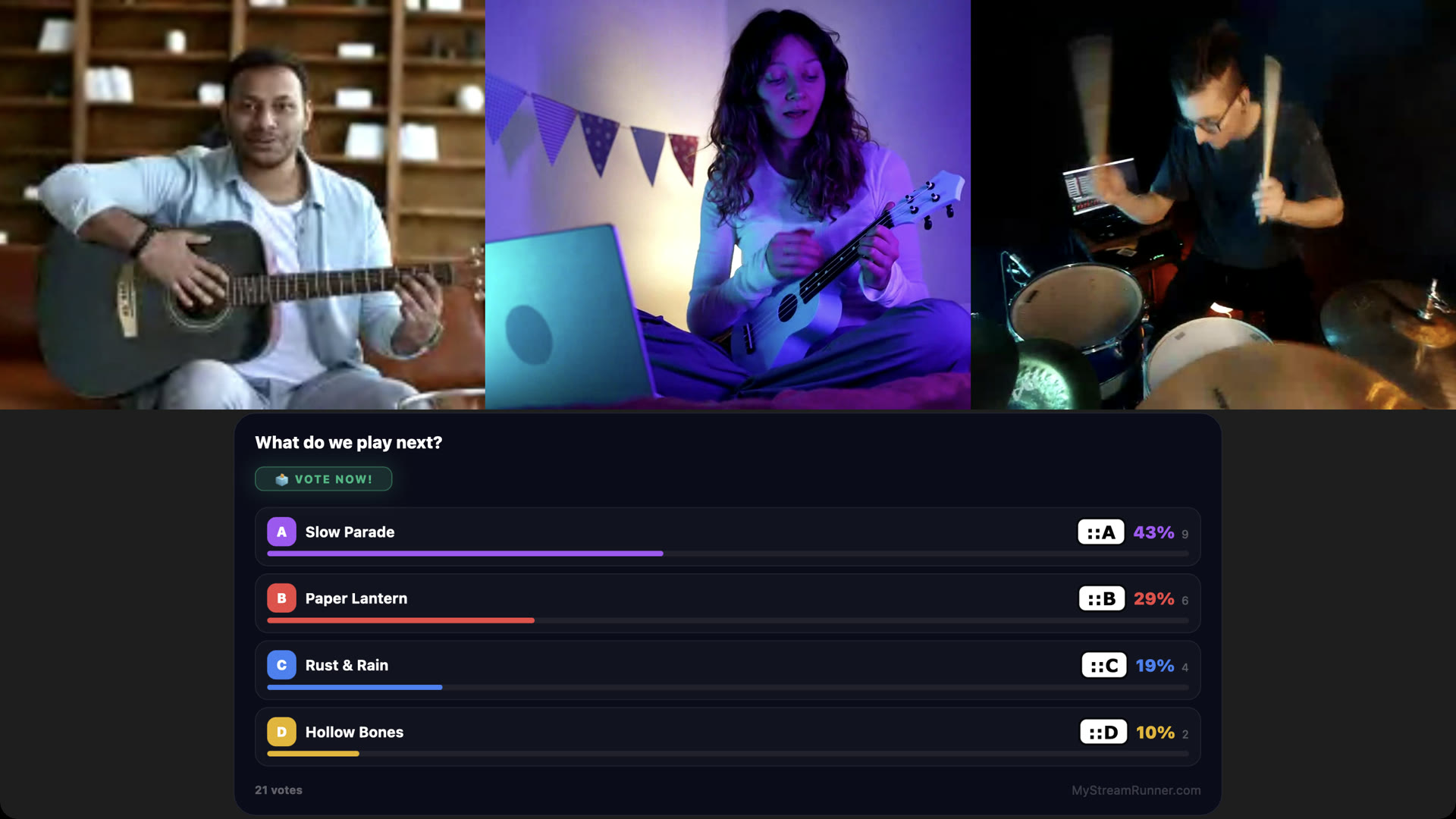
A show here is something the room is in. They are part of it from the first minute. They vote on what happens next and see the bars move as they do it. They answer the game show from chat and watch their name climb the leaderboard. They throw reactions across the stage. The best comment of the night goes up in lights. By the end they have played a part in the show, and that is the bit they tell people about.
They play along
- Polls they decide with — 55 themes, the count moving live
- Game shows answered A to D in chat, scored, with a leaderboard — 76 themes
- A music quiz, predictions, rankings and tier lists to argue over
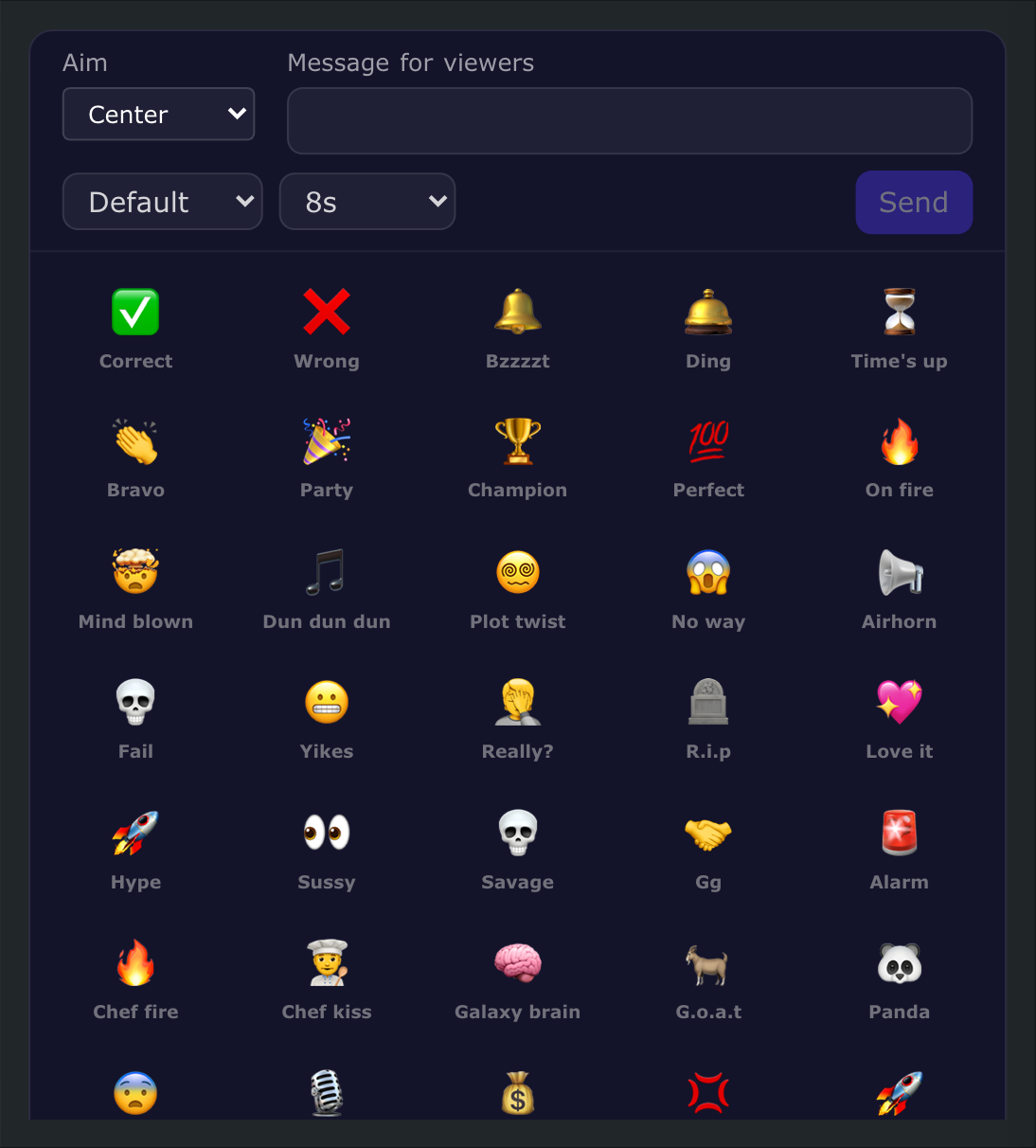
- 39 kinds of reaction flying across the stage, and celebration effects
- Their comment on the stage, their name on the members wall, a shoutout by name
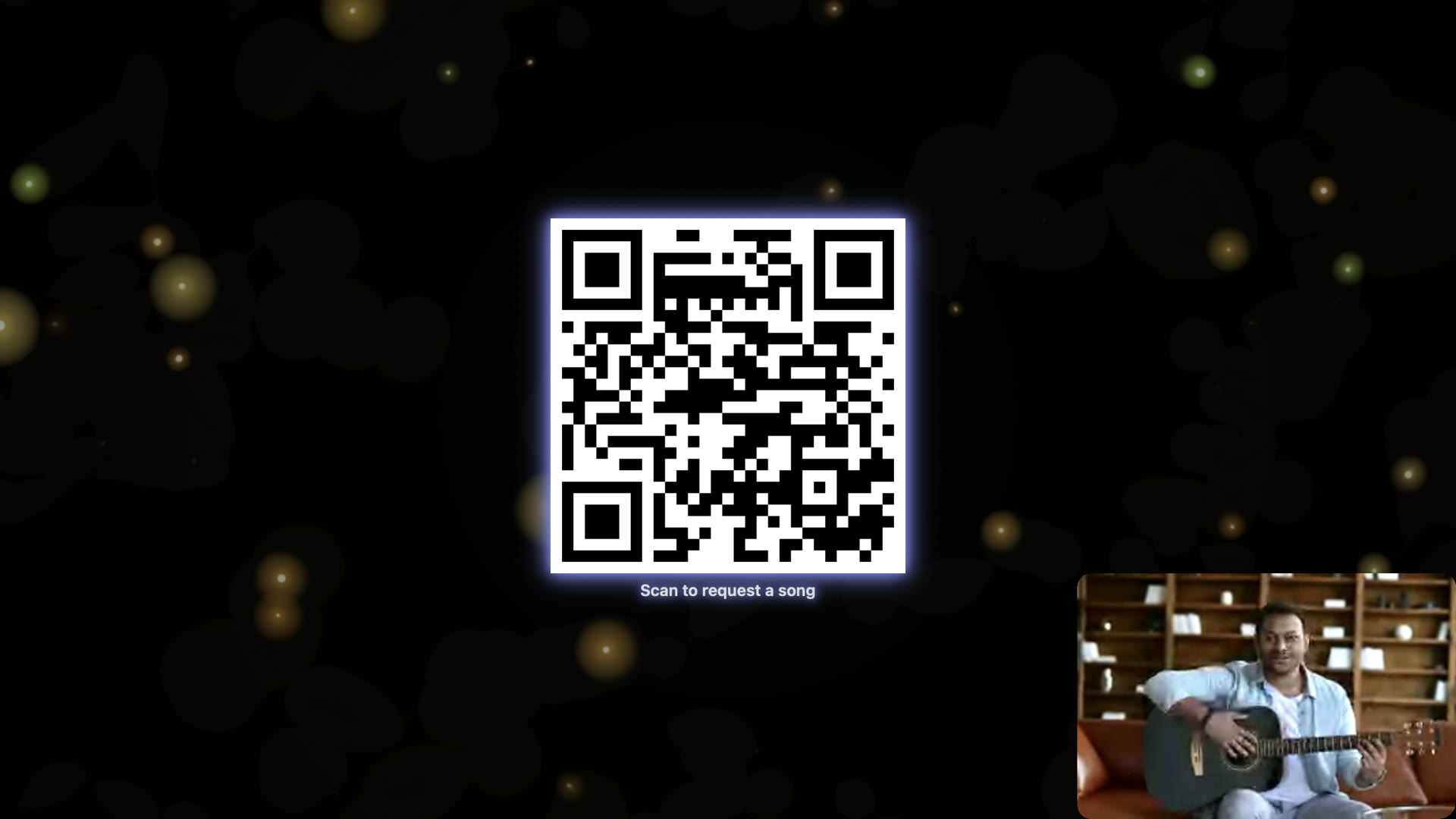
- A QR code on screen — they scan it and their request lands with you
- Giveaways drawn live, in 86 themes
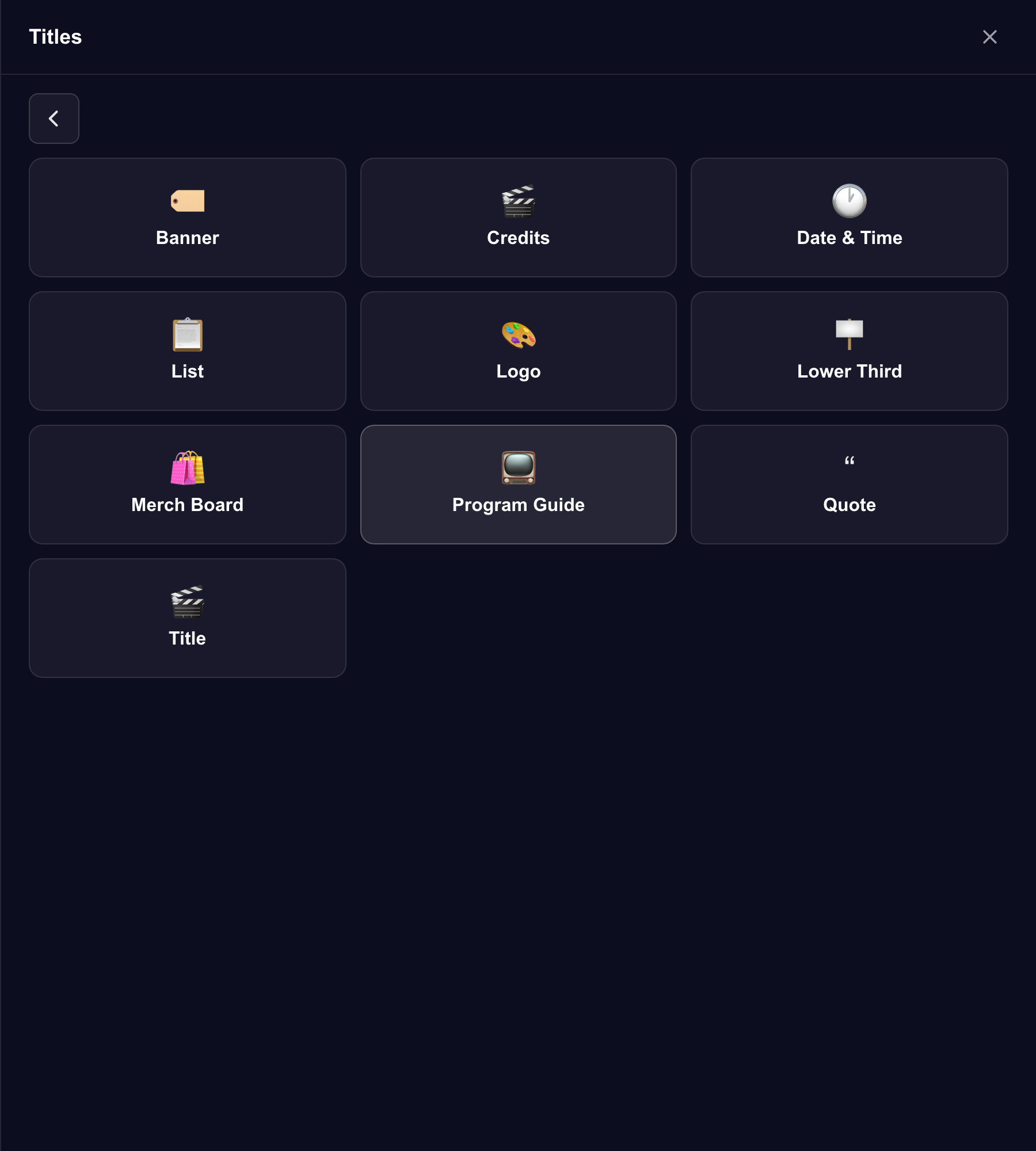
- A program guide of what is on next, and a merch board whose links land in chat as the card comes up
Tonight's running order
A show is a list of scenes. Build it before you go live, then press one key to move to the next. Everything opens together, already wired — and this is the one place all of it lives. Musicians first, and any host who runs a show: that is what the cues are for.
Open with something that moves
Title cards, countdowns, polls, giveaways, game shows answered in chat. Every one is a cue you drop on a spot.
- 556 animations, all included
- Chat from YouTube, Twitch or Kick, on screen
Go live, record, send it anywhere
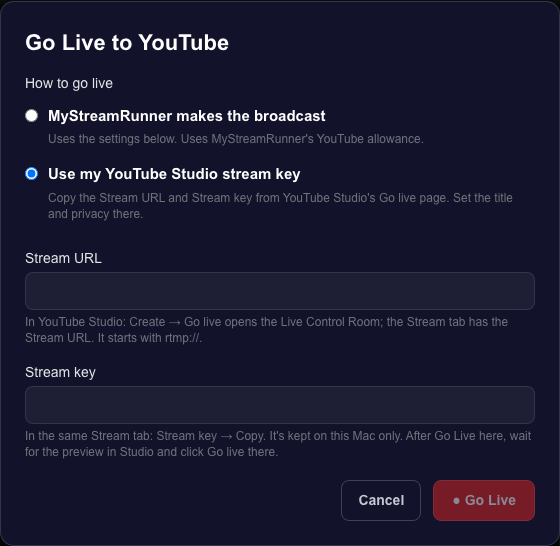
Three ways out of the app: go live to YouTube yourself, hand the finished show to any other app as a camera, or run the guests' server on your own machine.
- Go live with us — straight to YouTube from the app, with the broadcast made for you
- Or your own stream key — take the Stream URL and key out of YouTube Studio and paste them in. Nothing asks YouTube on your behalf, and the key never leaves your Mac. Save a new one mid-show and the stream moves to it without ending
- Virtual camera — the whole show becomes a camera on your Mac, so your favourite streaming tool, or a call, just picks it up
- Bring your own streaming server — your guests' video on your machine, your domain, your bill (the setup, written out)
- Record to your Mac while any of that is happening
- Snip cuts a piece out of the recording that is already running and puts it straight on a pad — the thing that just happened is a sound you can fire again before the song ends
- Snap takes a picture of what is going out and puts it in your media
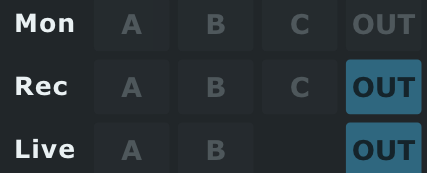
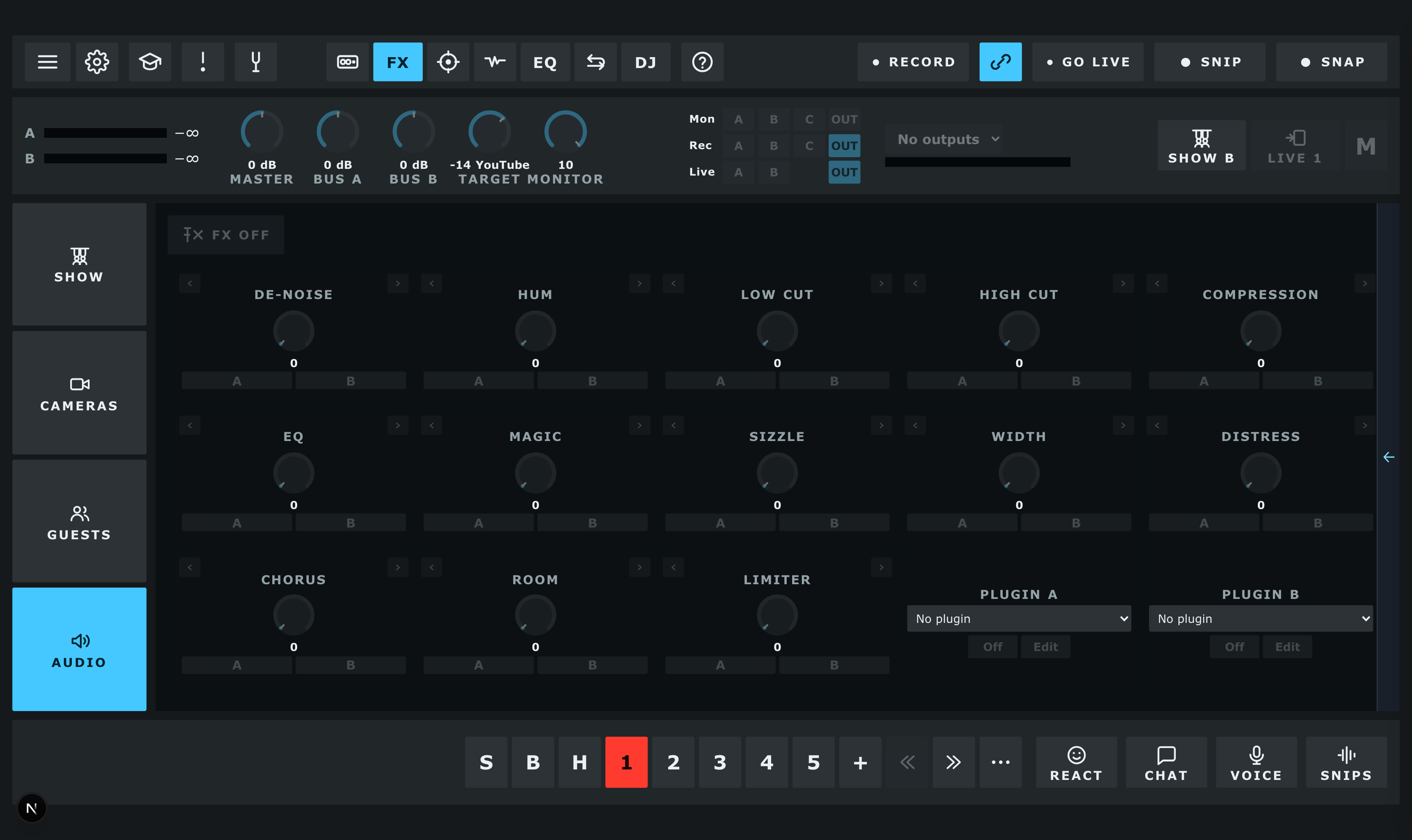
- Mon, Rec and Live are set apart — A and B are your two channels after their effects, C is what comes back from your guests, Out is the finished blend. Hear one thing, record another, send a third
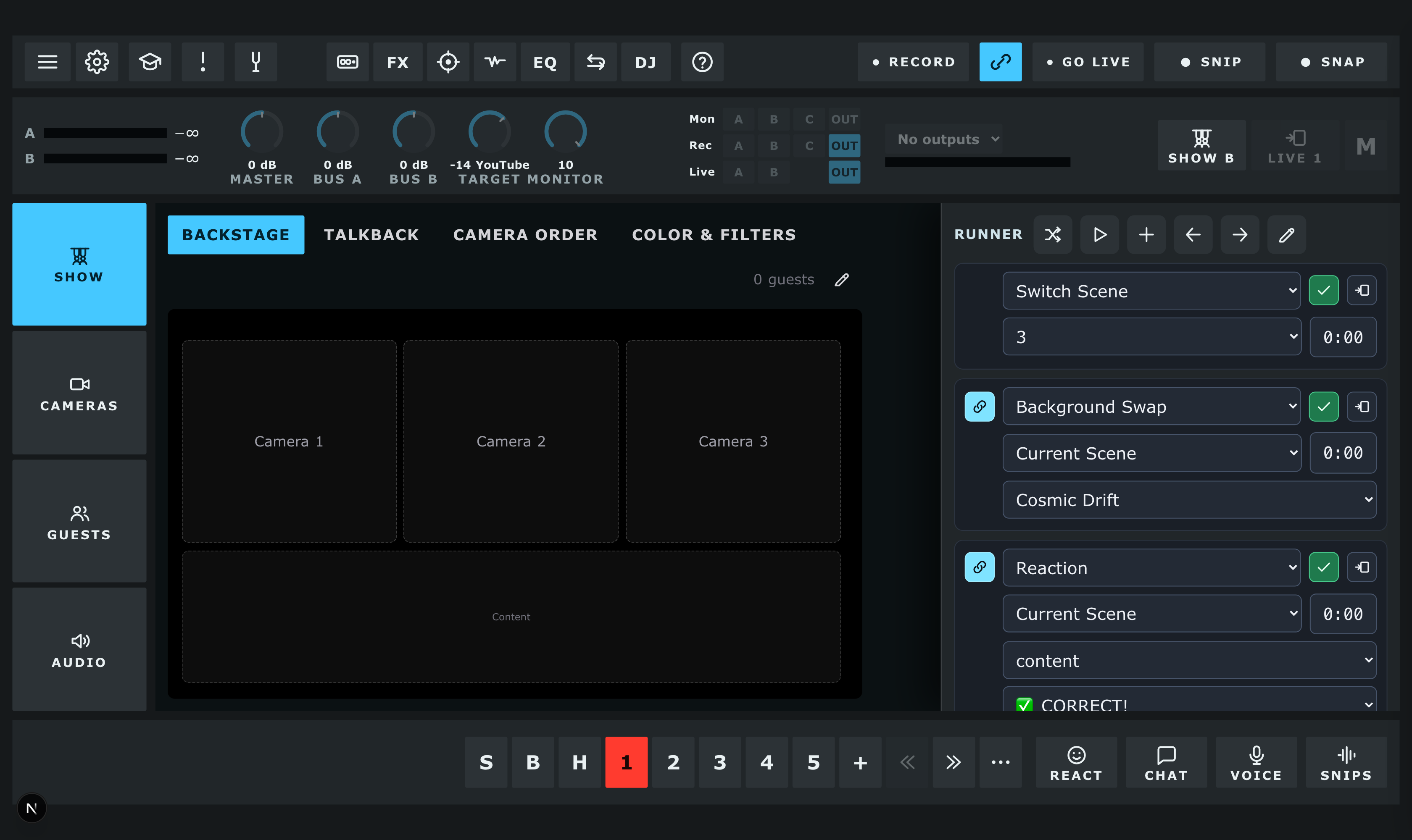

Pro audio tools, for everyone
The real tools, in the app that runs the show. Two independent channels, each with its own chain and its own loudness meter. Your own Audio Unit plugins. Audio and MIDI looped at the same time — and this is the one place you can. Shape your sound privately in the monitor, and keep the good bits. It is all here the moment you open the app, ready to run a show rather than build one.
- Channels A and B, each with its own effects
- Input gain, de-noise, hum, low cut, high cut, compression, EQ, width, chorus, room, limiter
- LUFS and true-peak meters, and a goniometer
- Audio Unit plugins, inserted in front of the chain
- Audio and MIDI looper — footswitch or MIDI Learn on any control
- Snips: keep the last few seconds off the back buffer, sound only or with picture, straight onto a pad
- Record while you stream, and choose what it captures: A, B, guests, or the whole output
- Sample pads and backing tracks, fired from the deck or a pedal
- Ducking: one channel steps back while the other has signal
- Talkback to a guest off air, and a mix-minus that sends each of them everything but their own voice
- Monitor A, B, guests or the outgoing mix; one Mute takes the stream, the recording and the cans together
- Chord charts, lead sheets, set lists, drums
Bring the band on
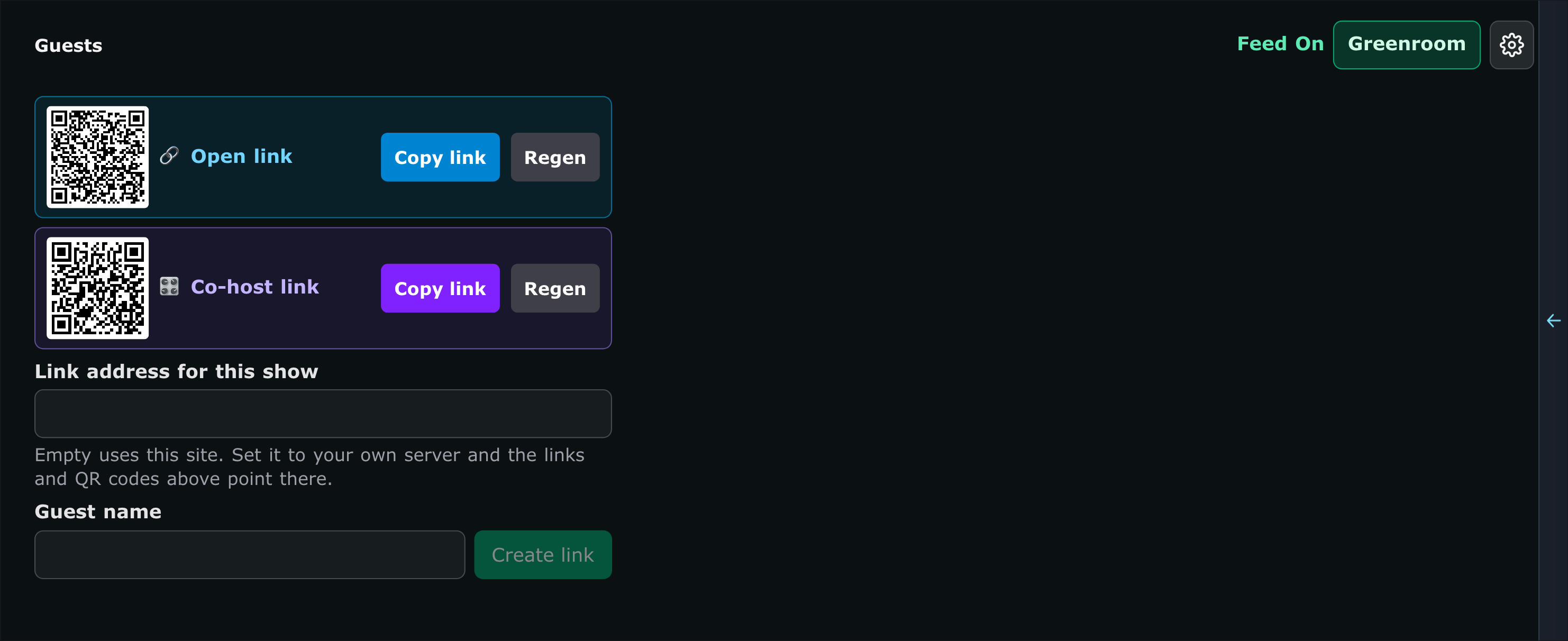
Send each player a link. They wait in the Green Room until you let them in, and you can talk to them off air before the song starts.
- Up to 9 guests
- Perform mode passes an instrument through clean, exactly as played
- Playaround passes the spotlight from player to player
- A co-host link hands somebody the Backstage controls — they run cues and cameras with you, from a browser or the app, while your running order stays yours
One press, and the night moves
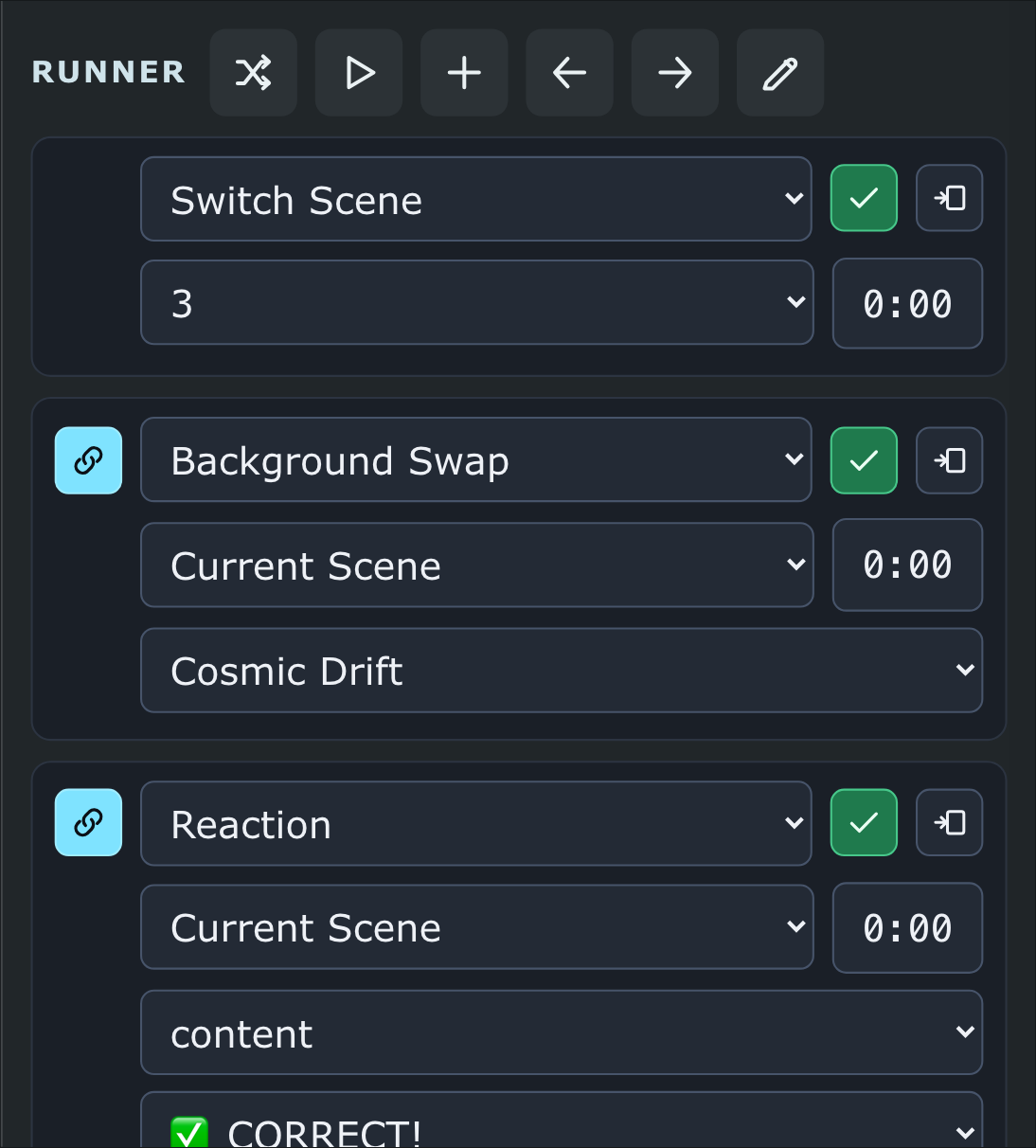
The Runner is your running order, down the right-hand edge of the desk. An event is a thing that happens and a length — how long until the next one. Press play and it walks the list and stops at the end. The clever part is what you can put on one beat, and what you can bind that beat to.
Put the whole moment on one beat
- An event is one of seven things: switch a scene, switch the camera in a spot, throw a reaction, hide or show something, swap the background, solo a camera, or play a track, a backing track or a snip
- Chain an event and the next one runs with it and ends with it — so a drop is one beat, not four presses
- Every event has a length: how long the show waits before the next one
- Leave an event out of the run and it keeps its place and its own key, for the thing you only fire when the room asks for it
- The arrows move the playhead without firing anything, so you can park the Runner where you want it before the song starts
- Shuffle scrambles the order for that run only — what you saved is untouched
- The running order belongs to the show, so next week it is already there
And a scene switch is just another event
- Any event can name the scene it happens in: the show goes there, then the thing happens. Leave it blank and it happens on whatever is live
- So the Runner moves the night from scene to scene as it goes — and a scene switch on its own is simply an event with nothing else in it
- By hand: press a scene to bring it up in front of you, and the key beside them puts it on the stream. What you are looking at and what the room is seeing are never the same press
- One MIDI note can run all of it. In the app, Learn binds a MIDI note — or a key — to any control on the desk, the Runner’s play key and each single event’s key included. Bind one to a pad and the sequence goes from your instrument, with both hands still on it
Easy to run, the same every week, and yours
And one person runs all of it live, on their own — then does it again next week from the same running order. That is what the app is actually for: the power of a production team, on one screen, driven by somebody whose hands are on an instrument — a MIDI foot controller takes the show from one moment to the next — and talking to the chat the whole time, because the chat is on the same screen as the show.
Run it with your feet
- Learn binds any control to whatever is under your hands or feet — a footswitch, a MIDI controller, a MIDI keyboard, or a key on the computer keyboard. Arm Learn, press the control on screen, then play the thing that should fire it (desktop app)
- Or type the trigger in: note or CC, its number, and the MIDI channel — set up from the keyboard, with the pedal left where it is
- We run our own shows from a MIDI foot controller, hands on the instrument
- The show IS the running order — one press moves it to the next moment
- Give an event a length, chain the next one to it, and a whole moment fires together
- Build it before you go live; it is all still there when you open the show again
- Duplicate a show for next week's episode, or duplicate a scene to make the next one
- Cameras stay in the spots you put them in, scene by scene, across restarts
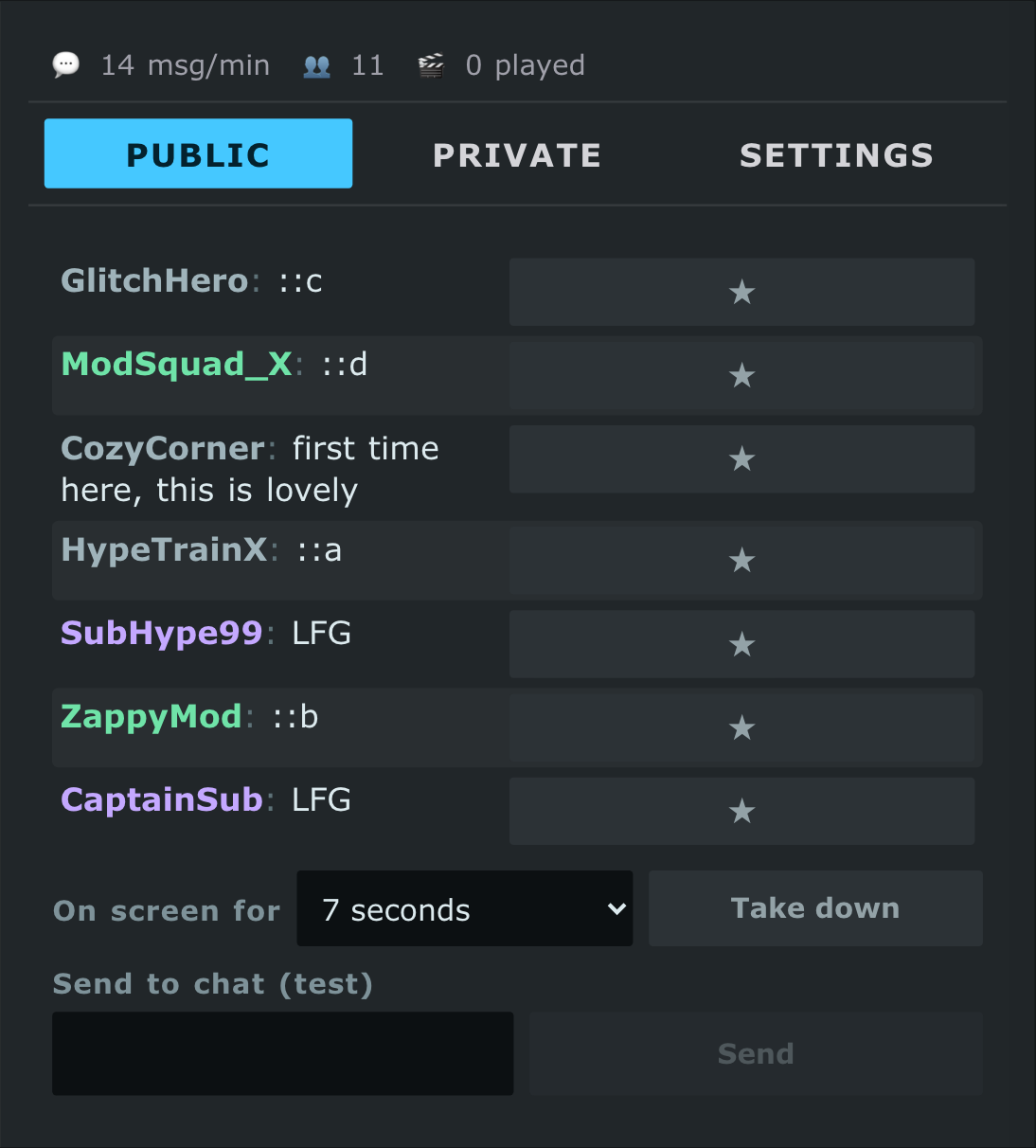
- Chat is a strip on the same glass: read it, answer it, put a comment on the stage, pause somebody — all from where you are running the show
- A private thread with your guests backstage, in the same place
- Your phone is a remote for it (Premium)
Make Your Show
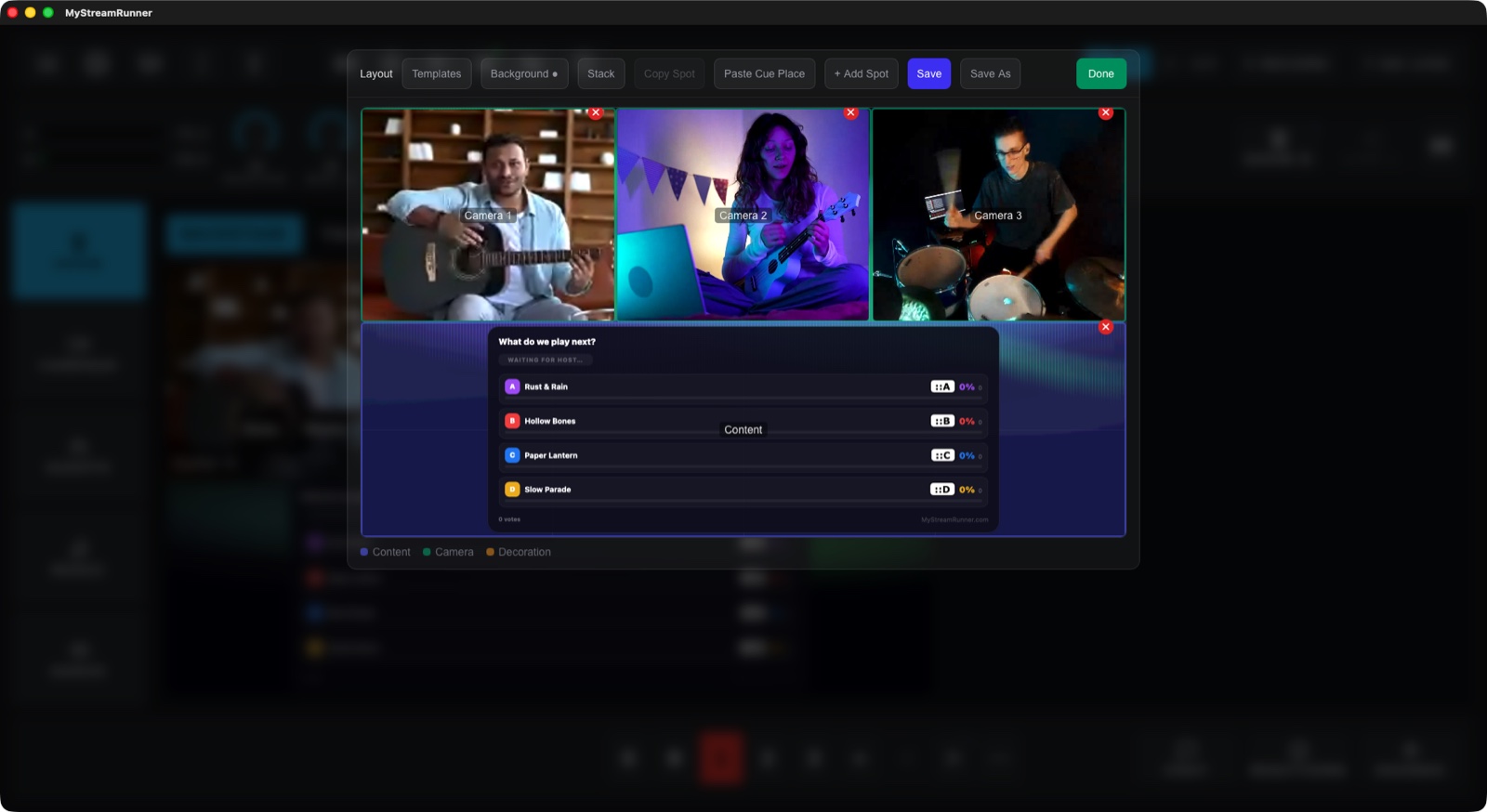
- Arrange the stage with the cameras live in it, then Save As your own template
- Every spot: size, rounded corners, border, shadow, tilt, opacity, stacking
- 556 cues, each with its own themes and colours to set
- Your own backgrounds, your nameplate style, a look on each camera
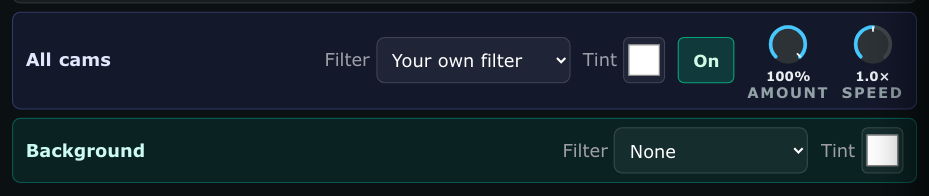
- Or write the look yourself: the last filter in the list is a file on your Mac, and the app rebuilds it a couple of seconds after you save. If it will not build, the camera keeps the last one that did and the reason is written down beside it — so a filter you are still working on cannot stop a show
- Hide or show anything mid-show, and the layout stays exactly as you built it
- Hand Backstage to a co-host and keep the running order to yourself
Every bit of gear, going where you want it
Plug it all in at once. The MIDI page sits under Audio and does two jobs: it shows you every message going in and out, and it sends any of them somewhere else. Nothing on the monitor sends, changes, holds back or swallows a message, so you can leave it open while you are on air. The app is what your gear is plugged into, so this page lives in the desktop app — in a browser you can open it and look round it.
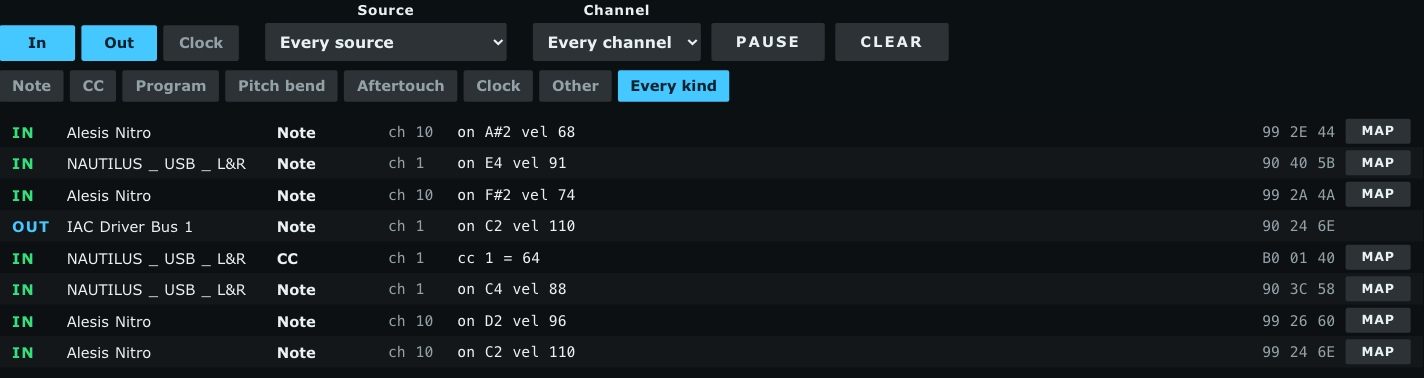
- Every line names the gear it came from, the channel, the kind of message and what it says — with the raw bytes beside it. Narrow it to one source, one channel or one kind; Pause holds the list still while you read it.
- Clock has a switch of its own and starts off: twenty-four messages a beat would bury everything else.
- Every line that arrived carries a Map key. One press and that message is already a rule, with the Map tab open on it.

- The table runs top to bottom and the first rule that takes a message is the one that applies — so the order on the screen is the order it happens in, and you can read it.
- A rule can change the channel, change the note or controller number, or both. Where it goes is either keep it here, or straight out of one of your MIDI outputs.
- A drum module that sends the wrong notes is put right once and stays right: the pad arrives as 46 and leaves as 38, every time, without touching the module.
- Learn builds a rule by ear. Press it, play the note you want to hear, then play the note that should play it.
- And a control can be learned to the beat of the bar rather than to a note — the beat’s own word is
::pulse.
A scene for this, a scene for that
A scene is a whole arrangement of the stage — where the cameras go, what shape they are, what is behind them, and which cues are standing by. Make one for the opening, one for the interview, one for the song, one for the game. Press its key and the stage becomes that. What you are looking at goes on air when you take it, so you can build the next scene in front of the audience and reveal it when it is ready.
- Each scene keeps its own cameras — who sits where is remembered per scene, across restarts
- Each keeps its own background, its own spot shapes, and its own cues standing by
- Reorder them and the keys renumber; duplicate one to make the next
- Save any arrangement as a template and use it in another scene, or another show
- Hide a spot on one scene and every other scene keeps its own
- Backstage and Solo sit OVER the live scene, so you can change everything underneath and drop them when you are ready
Your own app on the stage, run from the desk
Write a web app — a game, a map, a scoreboard, whatever your show needs — connect it once, and it has a seat in the show. Pick it on a cue and the cue asks the app what it can do, then draws its buttons for you. You press them. So does the room.
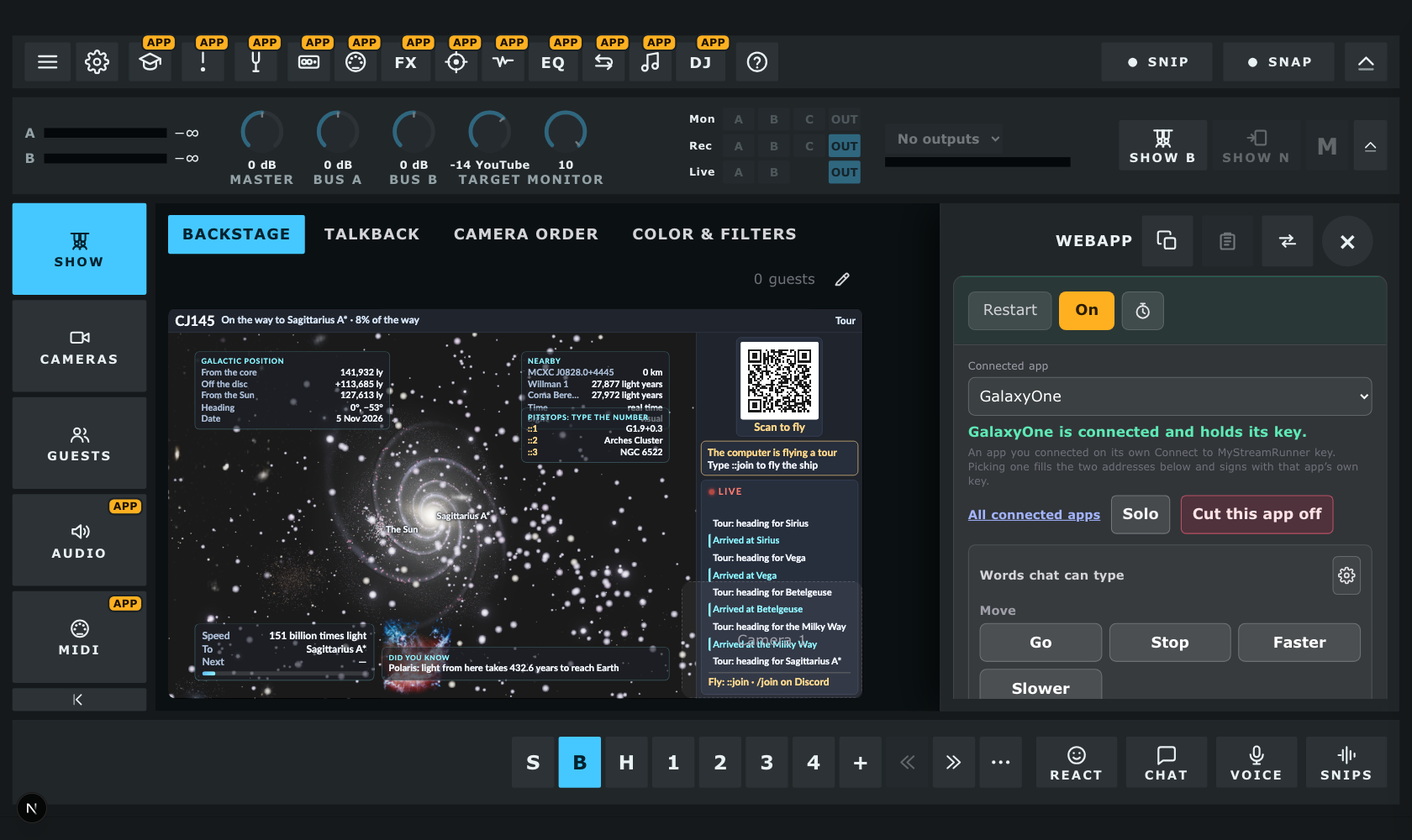
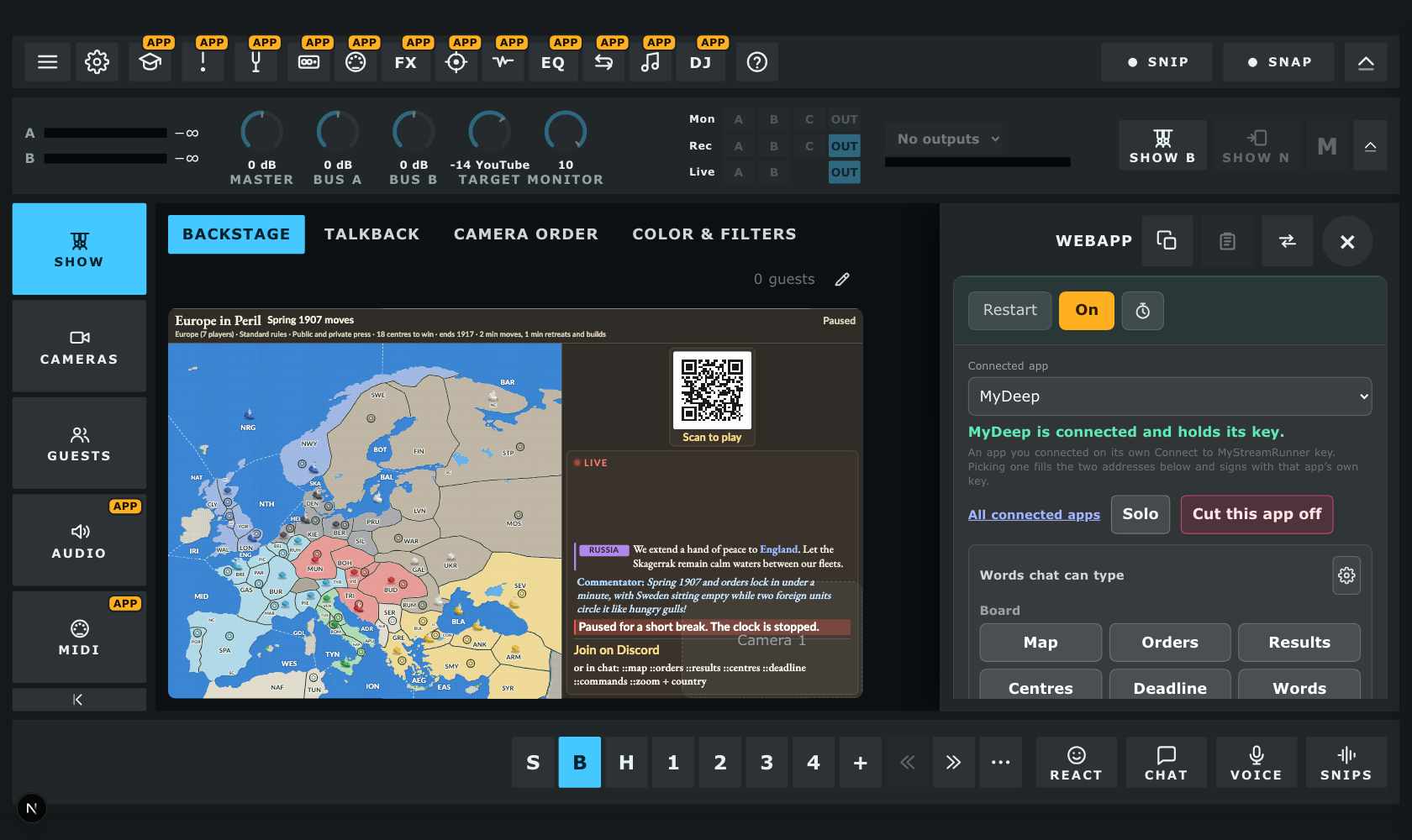
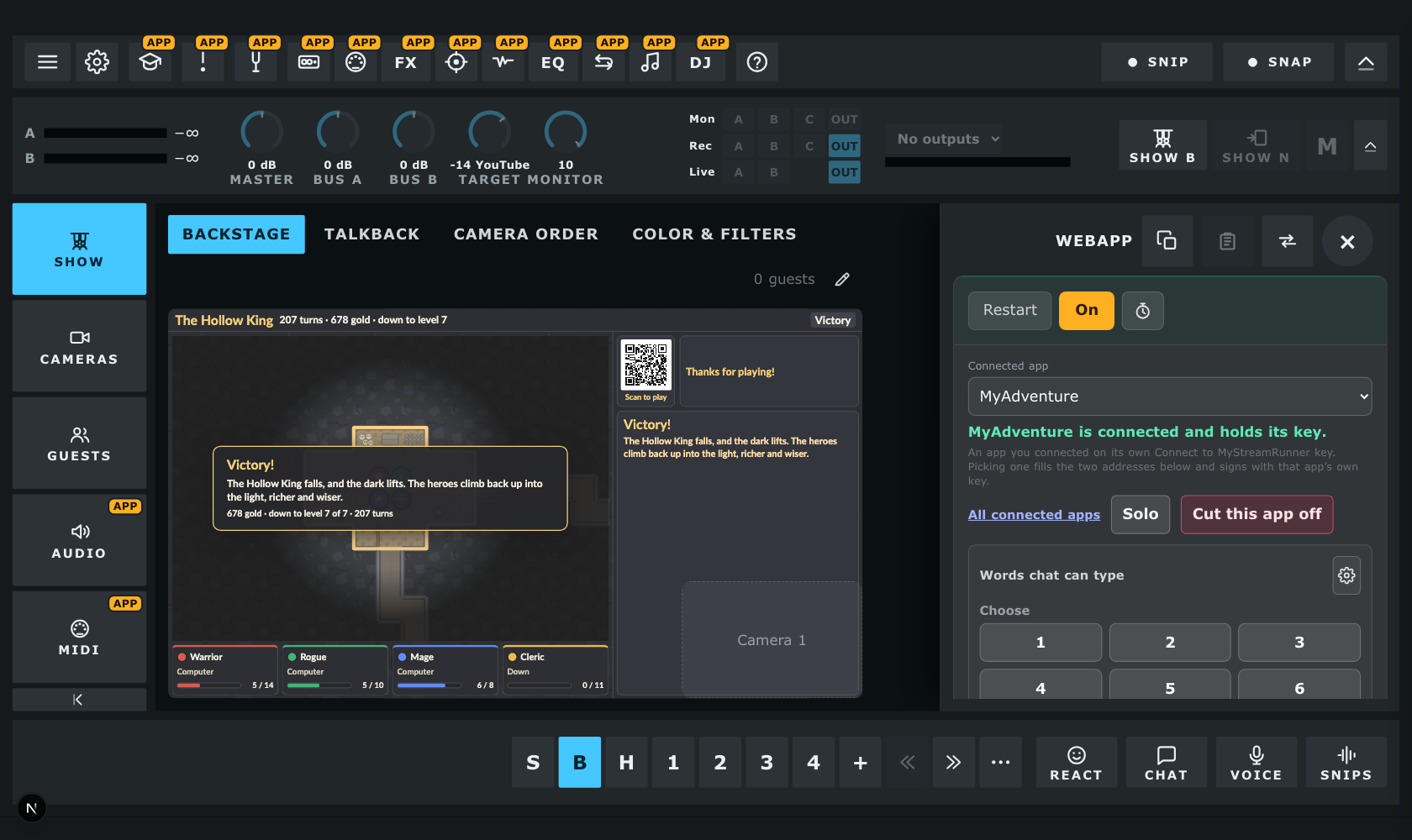
The app fills in its own buttons
- The app names its buttons and the groups they sit in, and they arrive in the order it listed them — so the sheet is organised by the app, not by us.
- Every button has a play key: press it and the word goes to the app now, as you.
- Chat can type the same words. Six go to every app whatever it is —
::join,::status,::quit,::help,::tipand::pulse, which is the beat of the bar. - A word is signed with every key the app could be holding, best first, so an app you connected twice still gets one it will accept.
- Solo puts the app on its own scene while the show carries on underneath it.
- Account → Connections lists every app you have connected, where its page is and when it connected.
- The cue tells you whether its app is connected, and a word the app refuses says so where you can read it — not as a number.
- Each connected app’s page address is a link, and it opens in a new tab, so you can go and look at the app itself.
And what it puts on screen is yours
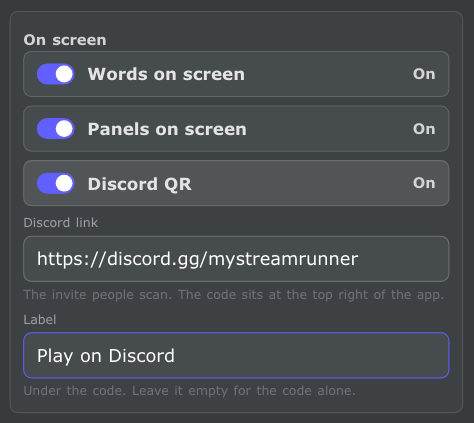
- Panels on screen, off, takes every panel of the app away and leaves its picture alone, full screen.
- Words on screen, off, takes the app’s chat words off the stage for an audience who already knows them.
- Discord QR puts your invite in the top right, with a label you write or leave blank. The app reports its own invite, so picking a different app changes the code.
From the app itself
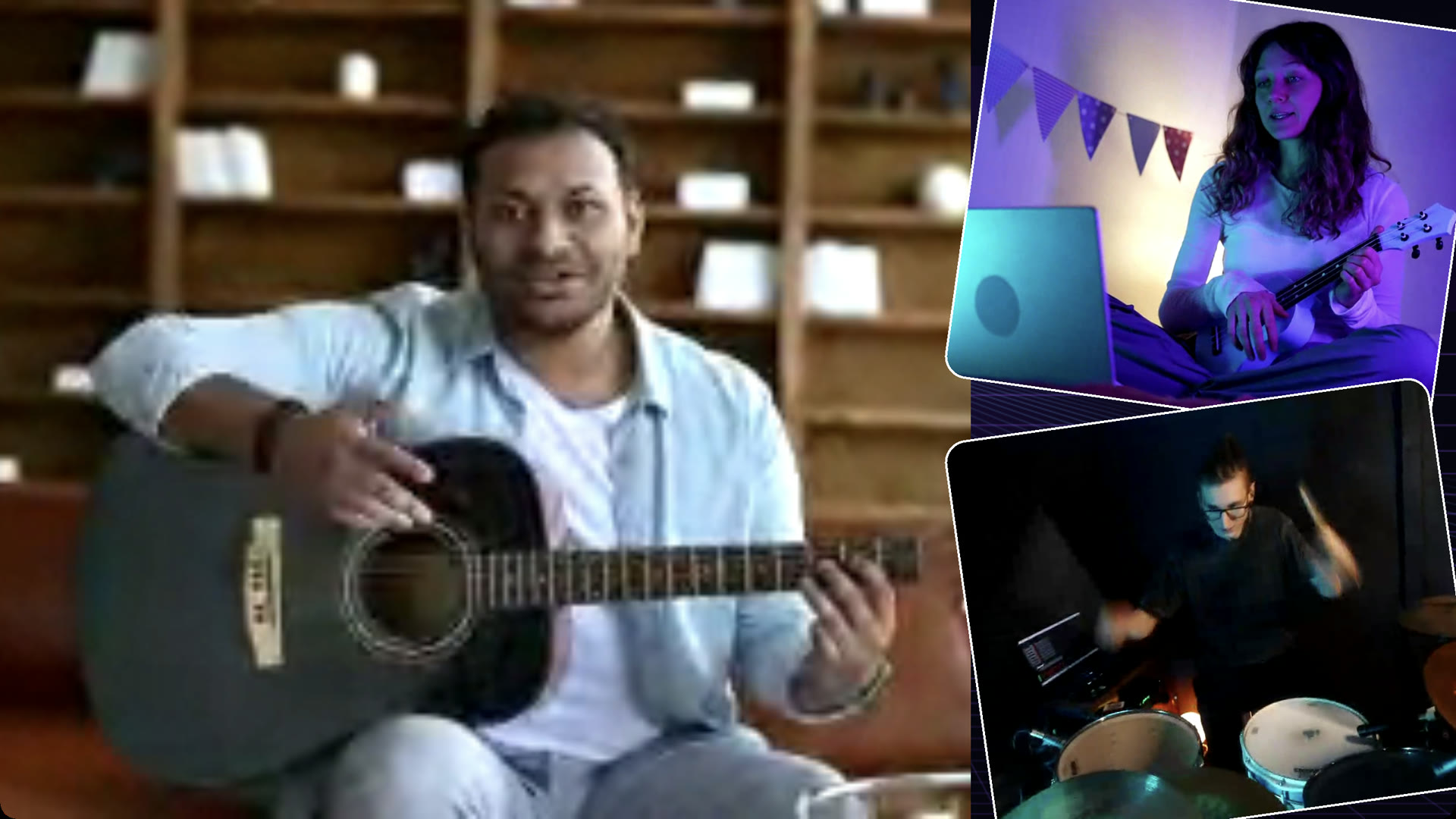
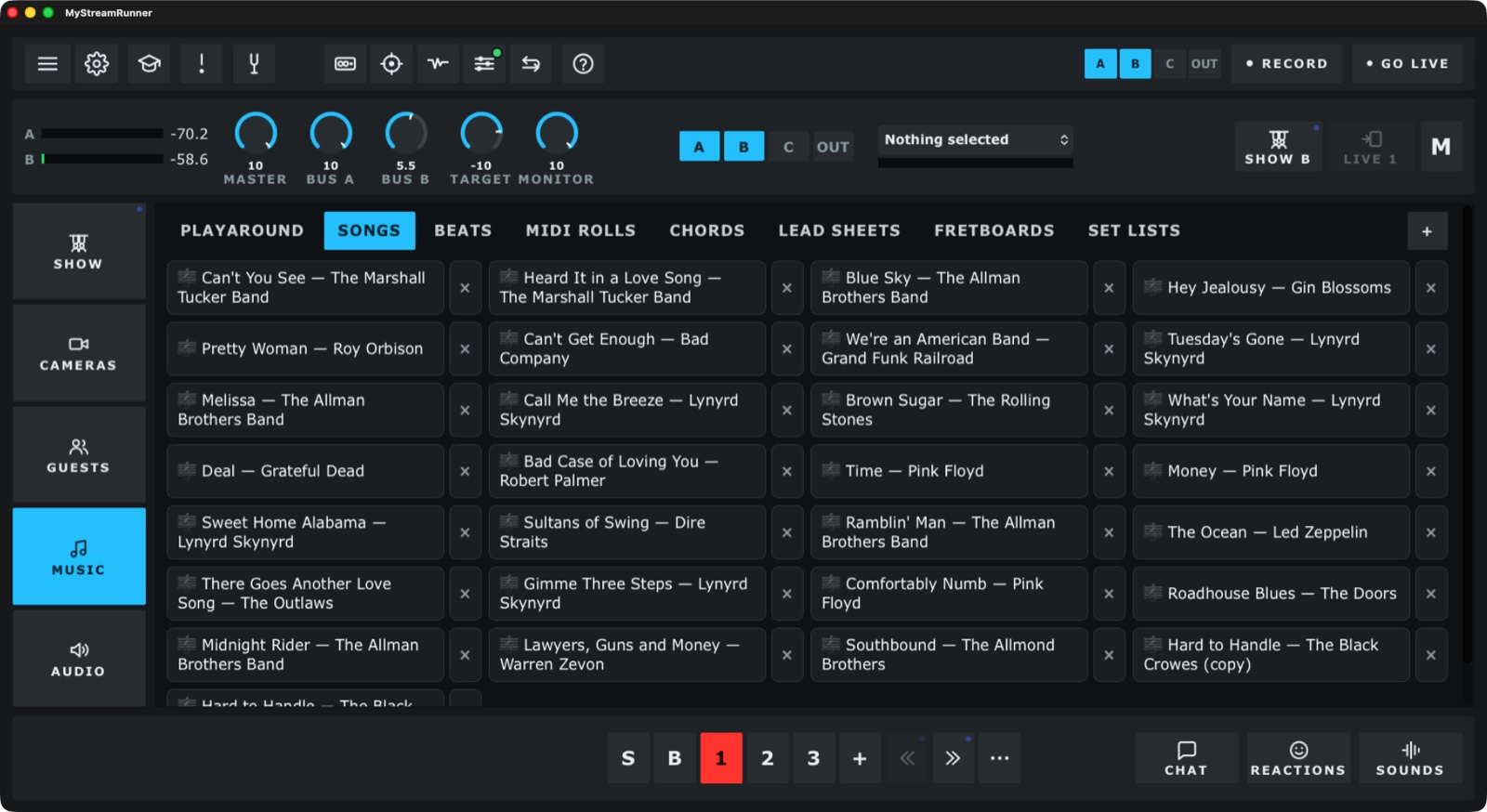
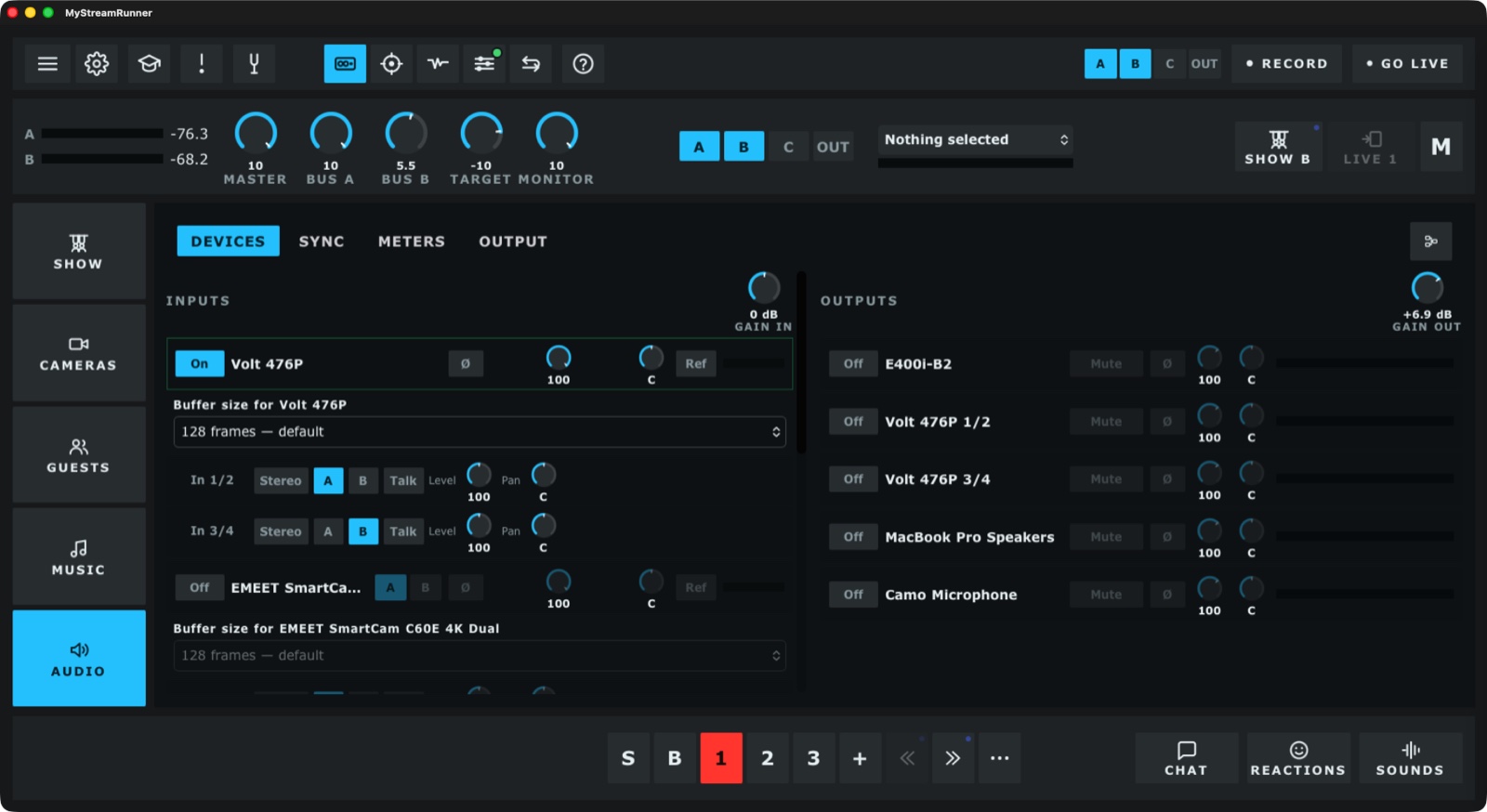
Screenshots of a real show running: the things you will find here, the stage an audience sees, and the panel you run it from.
Two ways to run it
The desktop app
macOS 26.5 or newer (Apple Silicon) · Windows 10 or newer
- Go live and record
- Cameras, guests and the stage
- Both audio channels, looper and plugins
- Virtual camera
In your browser
Any modern browser
- Build and run your cues
- Chat, polls and game shows
- Guest invites
- Viewer pages for OBS
Pick your seat
Both plans start with 14 days of Premium, free. You pay through Patreon.
Starving Artist
- Up to 6 guests
- Every animation and every cue
- Playaround and the music tools
- Both audio channels, looper and plugins
- Record, virtual camera, go live
Your animations show MyStreamRunner.com.
Request an invitePremium
You keep MyStreamRunner going.
- Everything in Starving Artist
- Up to 9 guests
- A co-host for your shows
- Extra cameras, including your phone or tablet
- The StreamRunner Remote phone app
- Your stage, unbranded
- 25 AI animations a month
And you can earn it free. Every host gets a link to share. Someone signs up with it and you earn a free month — one for each of them, used automatically at your next payment — and they start with a full 14-day trial, double the usual. It is in your Settings the day you join.
What the same show costs elsewhere
Lowest paid plan with guests, monthly, checked 15 September 2026. MyStreamRunner streams to YouTube only for now.
Feature by feature
| Feature | MyStreamRunner | StreamYardSY | RestreamRS | EcammEC | StreamlabsSL | OBS StudioOBS |
|---|---|---|---|---|---|---|
| 🎸 Playing Together | ||||||
| Guests join from a link | 6 · 9 | 6 free · 10 | 6 free · 10 | Pro: 10 | 1 free · 11 | — |
| Green Room before going on | ✓ | ✓ | — | — | — | — |
| Musician mode (instruments pass through clean) | Perform mode | ✓ | — | — | — | — |
| Talk to guests off air | Talkback | — | — | — | — | — |
| Turn-taking jamsOnly us | Playaround | — | — | — | — | — |
| Co-host invites | Link or email · Premium | — | Business | — | — | — |
| A co-host runs Backstage with youOnly us | Cues, cameras and chat; your running order stays yours | — | — | — | — | — |
| 🎚️ Sound | ||||||
| Independent audio channels | 2, own effects each | — | — | 2 mics + guests | Mixer | Mixer |
| Loudness meters (LUFS, true peak) | ✓ | — | — | — | — | — |
| Plugins | Audio Unit | — | — | Audio Unit | VST2 | VST2 |
| Audio and MIDI looperOnly us | ✓ | — | — | — | — | — |
| Footswitch and MIDI control | Learn | — | — | — | — | — |
| A MIDI monitor you can leave open on air | In and out, by source, channel and kind | — | — | — | — | — |
| Redirect MIDI between your gearOnly us | A table of rules, first match wins | — | — | — | — | — |
| Learn a redirect by playing itOnly us | Play what you want to hear, then what should play it | — | — | — | — | — |
| Turn one line of traffic into a ruleOnly us | Map, on the line itself | — | — | — | — | — |
| Effects on every channel | De-noise, hum, cuts, comp, EQ, width, chorus, room, limiter | Basic | Basic | Some | Filters | Filters |
| GoniometerOnly us | ✓ | — | — | — | — | — |
| Snips — keep the last seconds onto a padOnly us | Sound or picture | — | — | — | — | — |
| Record while you stream | Pick A, B, guests or the output | ✓ | ✓ | ✓ | ✓ | ✓ |
| Sample pads and backing tracks | ✓ | — | — | Some | Sound deck | — |
| Ducking between channels | ✓ | — | — | — | — | Sidechain |
| Mix-minus to guests | ✓ | ✓ | ✓ | ✓ | — | — |
| One Mute for stream, recording and monitors | ✓ | — | — | — | — | — |
| 🎼 Musician Tools | ||||||
| Chord charts and lyrics, transposeOnly us | ✓ | — | — | — | — | — |
| Lead sheets (Nashville numbers)Only us | ✓ | — | — | — | — | — |
| Set listsOnly us | ✓ | — | — | — | — | — |
| Drum sequencerOnly us | ✓ | — | — | — | — | — |
| MIDI piano rollOnly us | ✓ | — | — | — | — | — |
| ✨ Animated Content | ||||||
| Animated cues | 556 | Overlays | Overlays | Overlays | 1000+ themes | Browser sources |
| Giveaways | 86 themes | — | — | — | Cloudbot | — |
| Title cards | 77 themes | — | — | — | — | — |
| Countdowns | 64 themes | — | — | ✓ | — | — |
| Polls | 55 themes | ✓ | — | — | ✓ | — |
| Game shows answered in chatOnly us | 76 themes | — | — | — | — | — |
| Music quizOnly us | ✓ | — | — | — | — | — |
| Players send pictures from their phoneOnly us | ✓ | — | — | — | — | — |
| A private word to one playerOnly us | ✓ | — | — | — | — | — |
| Members and patron walls | 55 themes | — | — | — | — | — |
| Friend shoutouts | 41 themes | — | — | — | — | — |
| Reactions | 39 types | — | — | — | — | — |
| Transitions | 32 themes | — | — | — | — | — |
| Be right back | 16 themes | — | — | — | — | — |
| Poll duels — two sides battling as chat votesOnly us | 36 arenas | — | — | — | — | — |
| Predictions | 10 themes | — | — | — | — | — |
| Rankings and tier listsOnly us | ✓ | — | — | — | — | — |
| Program guide of what is on nextOnly us | YouTube thumbnails pulled in | — | — | — | — | — |
| Merch board that posts its links to chatOnly us | ✓ | — | — | — | — | — |
| Banner for a copyright or licence line | Three looks | — | — | — | — | — |
| A card telling the room what to typeOnly us | Read off the live cues | — | — | — | — | — |
| Your own web app in a spot, driven by chatOnly us | Signed webhooks | — | — | — | — | — |
| A connected app fills in its own buttonsOnly us | In the app’s own groups and order | — | — | — | — | — |
| Send one of the app’s words yourself, mid-showOnly us | A play key on every word | — | — | — | — | — |
| The app’s picture alone, full screenOnly us | Panels on screen, off | — | — | — | — | — |
| A Discord QR that follows the app you pickedOnly us | The app reports its own invite | — | — | — | — | — |
| An app on its own scene while the show runsOnly us | Solo | — | — | — | — | — |
| Learn a control to the beat of the barOnly us | ∷pulse | — | — | — | — | — |
| Celebration effects | 12 types | — | — | — | — | — |
| 💬 Chat | ||||||
| YouTube, Twitch and Kick chat | ✓ | ✓ | ✓ | ✓ | ✓ | — |
| Put a comment on screen | ✓ | ✓ | ✓ | ✓ | ✓ | — |
| Pause a chatter | ✓ | — | — | — | — | — |
| Chat vibe levelOnly us | Chill · Cozy · Lively · Hype · Chaos | — | — | — | — | — |
| Approve what chat puts on the stageOnly us | ✓ | — | — | — | — | — |
| Mute voting, exempt mods and membersOnly us | ✓ | — | — | — | — | — |
| 🎬 Show Production | ||||||
| Running order, one key to advance | ✓ | — | — | Scenes | Scenes | Scenes |
| Backstage scene | ✓ | Backstage | — | — | — | — |
| Presentation slides | ✓ | — | — | — | — | — |
| Lower thirds and nameplates | ✓ | — | — | — | — | — |
| QR codes on screen | ✓ | — | QR codes | — | — | — |
| Write your own camera filter | A shader the app rebuilds as you save it | — | — | — | — | — |
| Keyframe animation editor with AI | ✓ | — | — | — | — | — |
| 📡 Output | ||||||
| Stream to | YouTube | Many + multistream | 30+ platforms | 10 destinations | Multistream | Any RTMP |
| Go live on your own YouTube Studio stream key | Stream URL and key, kept on your Mac | ✓ | ✓ | ✓ | ✓ | ✓ |
| Move the stream to a new key without ending | ✓ | — | — | — | — | — |
| Reload mid-show and keep the show and its chatOnly us | ✓ | — | — | — | — | — |
| Record | ✓ | ✓ | Pro and up | ✓ | ✓ | ✓ |
| Virtual camera | Mac | — | — | Pro | ✓ | ✓ |
| Phone remote app | Premium | — | — | — | Mobile app | — |
| Runs on | Mac · Windows · browser | Browser | Browser | Mac | Windows · Mac | Windows · Mac · Linux |
| Bring your own streaming server | Guide + AI prompt | — | — | — | — | Self-hosted |
| Earn free months by sharing your linkOnly us | A month per sign-up | — | — | — | — | — |
| Point a show at your own addressOnly us | ✓ | — | — | — | — | — |
Checked on each product's own pricing and feature pages on 15 September 2026. “—” means we didn't find it there.
What only we do, and where we are today: the full comparison.